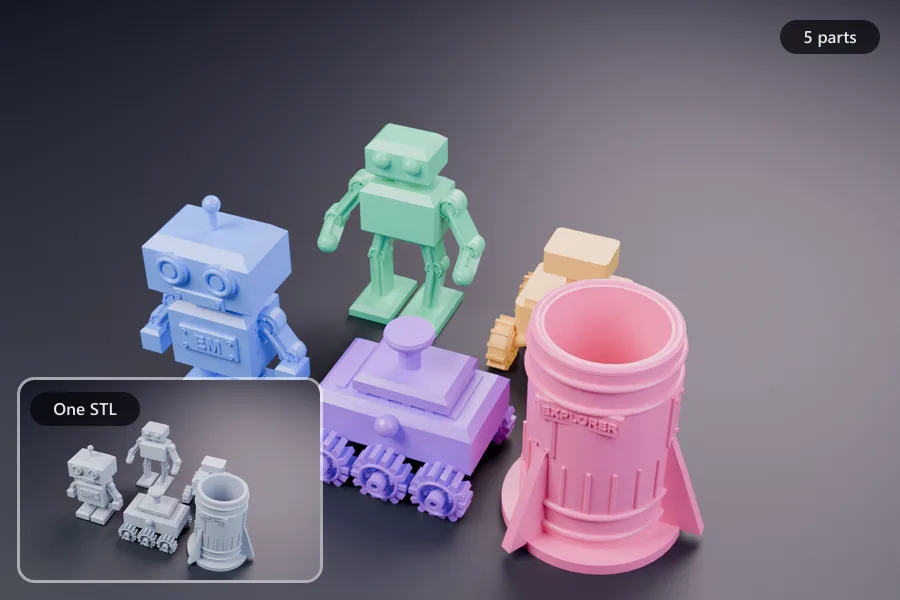
A whole plate saved as one STL
Five models exported together come out as one file. The split gives each its own STL, ready to print or rearrange on their own.
Two jobs, one page. Separate an STL that holds several objects into one file per object, or cut a model that is bigger than your printer into pieces that fit. Everything runs in your browser.
Drag and drop an STL or OBJ file here, or
Accepts .stl (binary or ASCII) and .obj. Nothing is uploaded.
This file has too many pieces to check which ones sit inside others, so every surface is listed as its own part. A hollow part will show its inside wall as a separate entry.
This file is one connected piece, so there is nothing to separate. To divide it into sections that fit your printer, use the Cut to fit printer tab above.
Drag and drop an STL or OBJ file here, or
Accepts .stl and .obj up to 600,000 triangles. Nothing is uploaded.
Pieces per axis
This model is not closed, so some cut faces may not close either. Check the volume line after cutting.
The file is read and converted on your device. It is never uploaded to a server.
Five models exported together come out as one file. The split gives each its own STL, ready to print or rearrange on their own.
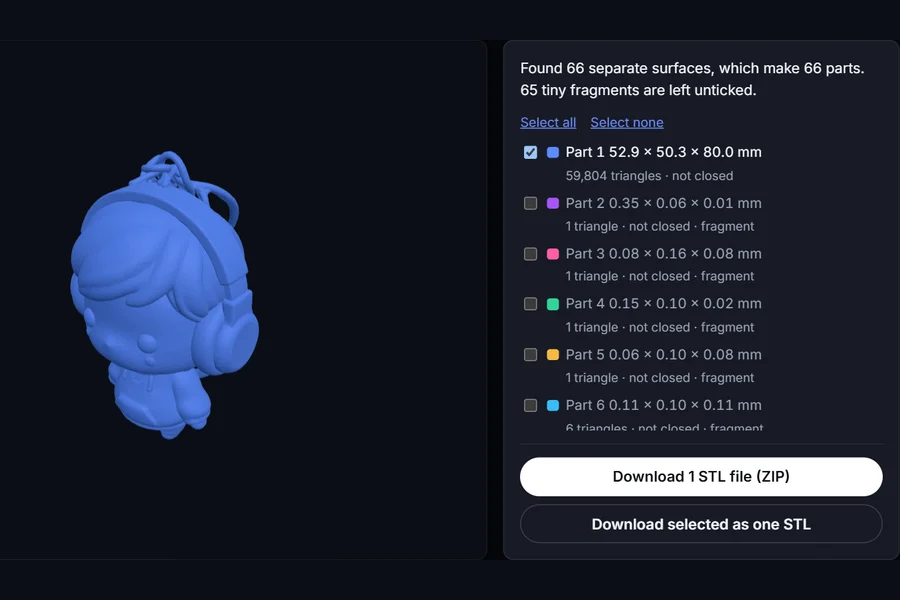
A TRELLIS.2 figurine we generated carries 65 specks of loose geometry. They start unticked, so one download gives you the clean model.

The cavity wall stays with the shell, and the loose ball comes out as its own part, which is what a print-in-place rattle needs.
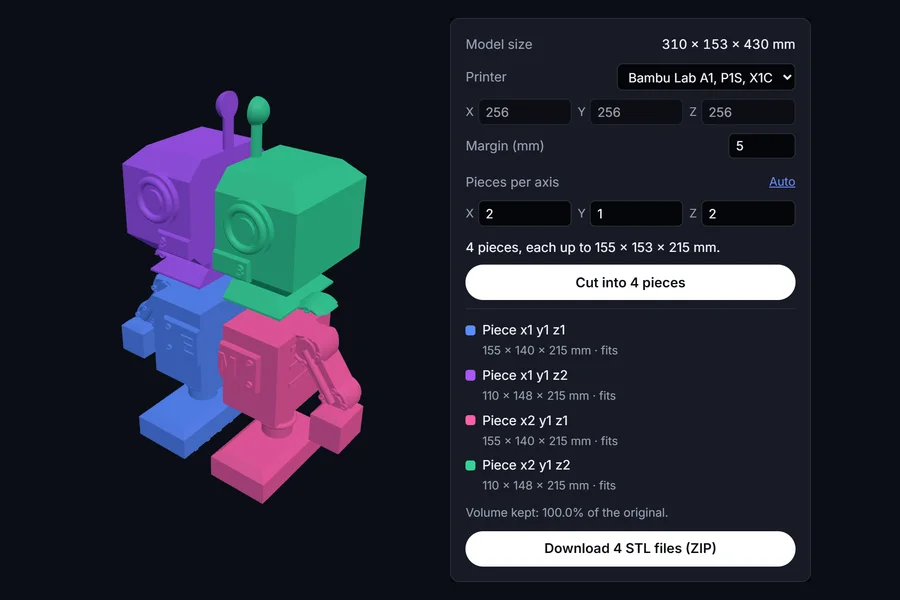
Taller and wider than a Bambu Lab A1 or P1S can print. Two cuts make four pieces that each fit, with every cut face closed.
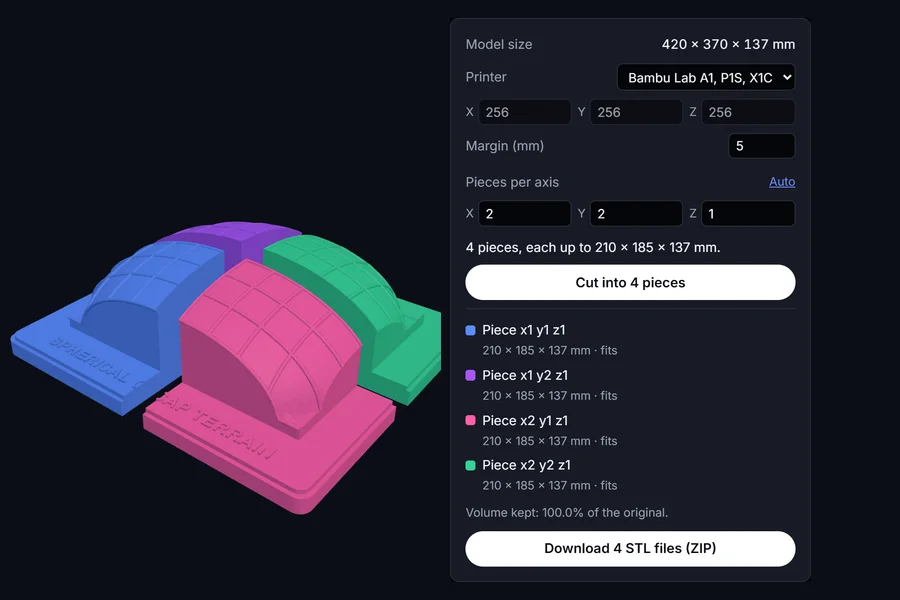
A wide, shallow piece only needs cutting in X and Y. Four tiles, each under the bed size, ready to print flat.
An STL does not say which object a triangle belongs to. Triangles that share an edge are joined, and every group that ends up connected is one surface.
The wall of a cavity faces inward, so it stays with the part around it instead of coming out as a solid plug. A ball loose inside a shell is still its own part.
Pieces under 1% of the model's size, and loose slivers with almost no triangles, are left out by default. Tick any you want back.
Choose a printer or type the bed size. The tool works out how many cuts each axis needs, leaving a margin you set.
The model is divided into equal slices along each axis, so no piece is a sliver. Change the count on any axis to cut differently.
Every cut is capped, so each piece is a solid the slicer can print. The volume of the pieces is checked against the original.
No. The file is read and split by code running in this page, and the STL files are written in the same place. Nothing is sent to a server.
Models from AI generators, scans and some exporters contain loose pieces: a few floating triangles, a stray shell inside the main body. Each one is a separate surface. They are marked as fragments and left out by default, which also makes this a quick way to clean them out: download the selected parts as one STL.
Yes. The Cut to fit printer tab takes your printer or bed size, works out how many cuts are needed and gives you pieces that each fit, with the cut faces closed.
It is the same idea. The difference is that every part is listed with its size before you download, the inside wall of a hollow part is not split off, and fragments are separated from real parts.
Open the Cut to fit printer tab, load the file and set the count to 2 on the axis you want to cut across, leaving the other two at 1. Each half comes out as its own STL with the cut face closed.
The pieces are checked against the original model. A shortfall means some cut faces could not be closed, which happens when the model itself is not closed. Repair it first, or check the pieces in your slicer before printing.