Blender to Godot: GLB, .blend or FBX, and What Each One Keeps
Published 2026-10-27
There are three ways to get a model from Blender into Godot, and most threads about the move argue over which one to use without saying what each one keeps. We built test scenes in Blender for materials, animation, collision and scale, sent each one into Godot 4.7 all three ways, and read back what Godot made of them. Two of the routes gave identical results. The third lost most of the materials and turned one idle animation into twelve.
Three ways from Blender into Godot
- Save the .blend file in the project. Godot imports it by running Blender in the background and exporting a glTF file. The first time, the editor asks where Blender is installed (it needs Blender 3.0 or later); the setting lives under Editor Settings > FileSystem > Import > Blender. Everyone who opens the project needs Blender installed too.
- Export GLB. File > Export > glTF 2.0, format GLB, and copy the file into the project. Godot reads glTF natively; nothing to install.
- Export FBX. File > Export > FBX. Since version 4.3, Godot reads FBX itself with the ufbx library, so FBX2glTF is no longer needed.
What we measured
Every scene was written three ways from Blender 5.2.2 (a .blend file, a GLB and an FBX, every export setting at its default) and imported into Godot 4.7.2 with every import option at its default. A script then loaded each imported scene and recorded every node, material, animation and collision shape.
- Materials: the same ten test materials as our Blender to Unity test, built by the same script, so the two engines can be compared on one file. Five spheres from roughness 0 to 1, one metal sphere, and four cards with a colour texture, a roughness texture, a normal map, and an alpha texture that cuts out strands of hair.
- Animation: an upper arm, a forearm and a sword swinging, built three ways: each part keyframed on its own (as in the r/godot thread “Exporting from blender nightmare”), all three keyed into one shared action, and the three parented to the bones of an armature.
- Collision: five objects named with Godot’s import suffixes.
- Scale and axes: a 2 m cube, a 1 m cube with an object scale of 2, and markers 3 m along each Blender axis.
The raw output is published as JSON, produced
by scripts/measure-blender-godot.py.
Materials: GLB and .blend keep everything
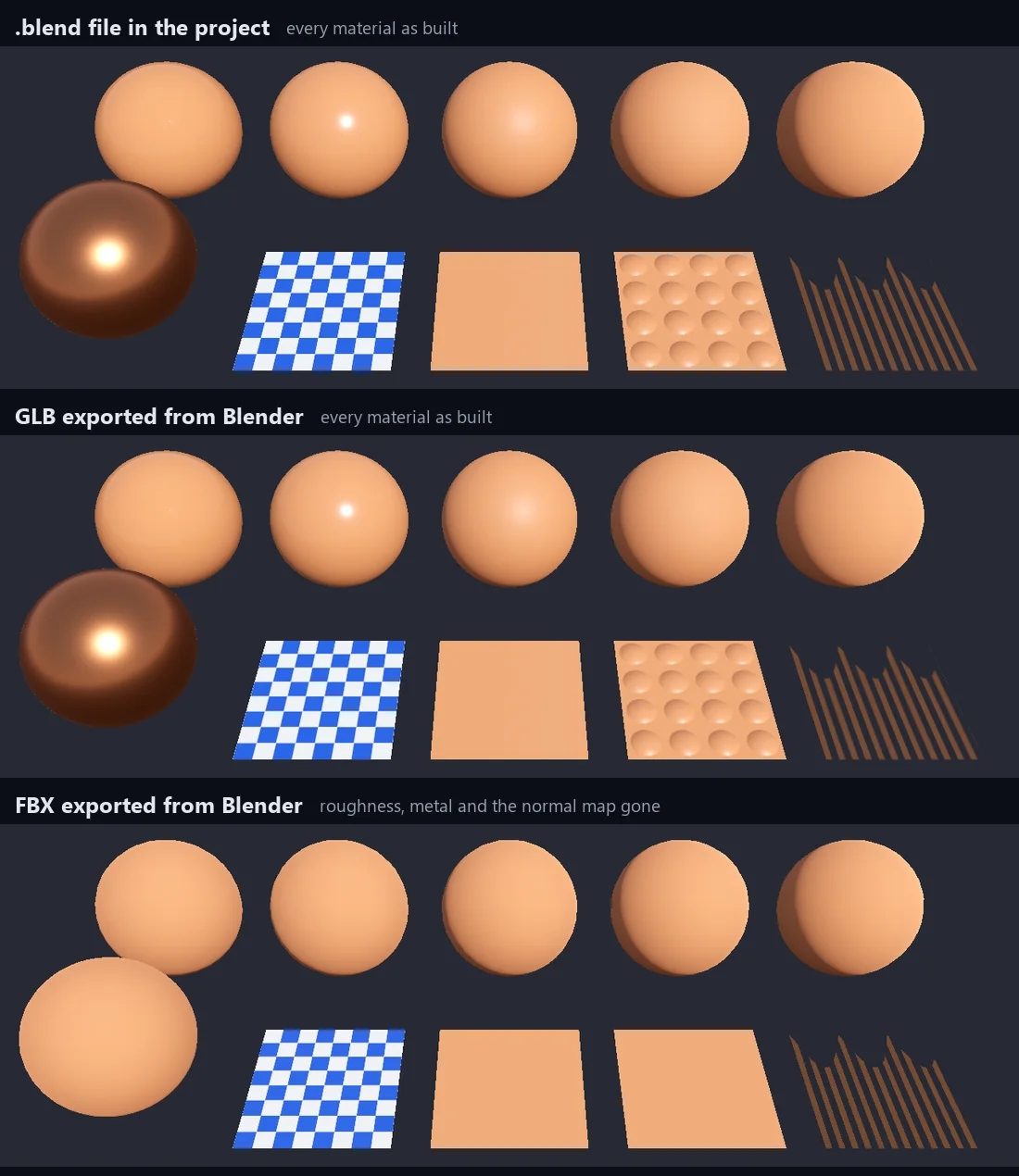
| Material in Blender | .blend in the project | GLB | FBX |
|---|---|---|---|
| Roughness 0, 0.25, 0.5, 0.75 | Exact | Exact | All roughness 1 |
| Metallic 1, roughness 0.3 | Exact | Exact | Metallic 0, roughness 1 |
| Roughness texture | Assigned | Assigned | Not assigned |
| Normal map | Assigned | Assigned | Assigned at strength 0 |
| Alpha cut out (hair card) | Transparent | Transparent | Cut out (alpha scissor) |
| Base colour and colour texture | Correct | Correct | Correct |
| Back faces | Drawn (double-sided) | Drawn (double-sided) | Culled |
The roughness 1 sphere is the one FBX row that looks right, and only by coincidence: Godot’s StandardMaterial3D starts at roughness 1 and metallic 0, so a material nobody filled in looks exactly like one that asked for full roughness.
Why FBX loses them
Blender’s FBX exporter has nowhere better to put physically based values. FBX materials are Lambert or Phong, both older than roughness and metallic, so Blender converts roughness into Shininess and writes metallic into ReflectionFactor. The values are in the file; our Unity test read them back.
Godot’s FBX importer does not get to them. In its source (modules/fbx/fbx_document.cpp), roughness, metallic and their textures are read only inside a block that runs when ufbx flags the material as physically based, and ufbx gives a Phong material the diffuse, specular, emission and transmission features, not that one. ufbx even converts Shininess into a roughness value; Godot never asks for it.
The normal map is a different gap. Godot sets the map’s strength from the FBX material’s NormalMap property, and Blender leaves that property at the file’s default of 0, so the map is assigned and does nothing. Raising Normal Map > Scale to 1 on the material in Godot brings the bumps back.
Animation: why one idle became many
The r/godot poster had animated an arm and a sword, wanted one idle animation, and got one per object. We reproduced it with three parts and got this:
| Export | Each part keyed on its own | All parts in one shared action | Parts parented to an armature |
|---|---|---|---|
| .blend in the project | 3 animations, one part each | 1, all parts | 1, all parts |
| GLB, default (Actions) | 3 animations, one part each | 1, all parts | 1, all parts |
| GLB, Active actions merged | 1, all parts | 1, all parts | 1, all parts |
| GLB, Scene | 3 animations, one part each | 3 animations, one part each | 1, all parts |
| GLB, NLA Tracks | none | none | none |
| FBX, default (All Actions on) | 12 animations | 3 animations, one part each | 1, all parts |
| FBX, All Actions off | none | none | none |
| FBX, All Actions and NLA Strips off | 1, all parts | 1, all parts | 1, all parts |
“One part each” means just that: the forearm’s animation moves only the forearm, and the other parts stand still. An AnimationPlayer plays one animation at a time, so getting the whole arm to swing together takes an AnimationTree or merging the tracks by hand.
Where the extra animations come from. In Blender, keyframing an object gives that object its own action, named after it (forearmAction, swordAction). Both exporters treat actions as separate animations. The FBX exporter goes further: with All Actions on, its default, it applies every action in the file to every animated object whose properties the action can drive, and writes one animation per pair (export_fbx_bin.py, in Blender’s FBX add-on). Our three parts and four actions became twelve animations, such as forearm|swordAction: the forearm swinging the way the sword was meant to. The fourth action was a leftover from an earlier attempt, kept in the file by a fake user. The glTF exporter skipped it; the FBX exporter applied it to all three parts. A file with a history of abandoned attempts multiplies fast, which is how a simple idle ends up as 17.
What fixes it, best first:
- Parent the parts to bones of one armature and animate the armature. One action, and one animation through every route we tried, FBX included. For rigid parts, select the part, then the armature, enter Pose Mode, select the bone, and press Ctrl+P > Bone.
- Keep the objects, but key them into one action. Since Blender 4.4, one action can hold the animation of several objects, each in its own slot. Our shared-action scene gave one
idleanimation through GLB and .blend, but still three through FBX. - Merge at export. Setting the glTF exporter’s Animation Mode to Active actions merged combined the three into one. It names the result after the Merged Animation Name field,
Animationby default, so any-loopsuffix in the action’s name is lost (see the next section). For FBX, turning off both All Actions and NLA Strips writes one take calledScene. Turning off All Actions alone wrote no animation at all, because the exporter then looks for NLA strips, and there were none.
Collision and other import suffixes
Godot reads suffixes on object names as instructions, which its manual calls node type customization. They worked the same way through all three routes:
| Object name in Blender | What Godot made of it, all three routes |
|---|---|
wall-col | The mesh, with a StaticBody3D and a concave collision shape as children |
floor-colonly | A StaticBody3D with a concave collision shape, no mesh |
rock-convcolonly | A StaticBody3D with a convex collision shape, no mesh |
crate-rigid | A RigidBody3D holding the mesh and a convex collision shape |
marker-noimp | Nothing; the object is left out |
Action named spin-loop | An animation called spin, set to loop |
The suffixes are removed from the names, except on the rigid body, which keeps crate-rigid. The -loop suffix only works if the animation keeps its action’s name: through Active actions merged and through the FBX Scene take it was renamed, and the loop was lost with it.
For anything a suffix cannot express, such as the doors in the r/godot thread about post-import scripts, Godot can run a script of your own on every imported scene; see using import scripts in the manual.
Scale and axes, and the FBX scale of 100
Every route put the 2 m cube at 2 m, and turned Blender’s Z up into Godot’s Y up in the same way: Blender’s +X stayed +X, +Z became +Y, and +Y became -Z, Godot’s forward. So far, nothing to fix.
The difference is inside the FBX. With default settings, every node came in with a scale of 100 and a mesh a hundredth of its real size; the product is right, so the model looks correct in the editor. Two things make it matter:
- Anything that reuses the mesh gets the small one. Save the mesh as a resource, or use it in a MultiMesh, and it is 2 cm, not 2 m.
- Rigid bodies shrink when the game runs. Godot overrides any scale on a RigidBody3D with 1 once physics takes over, and its own warning says so. Our 1 m
crate-rigidcube from the default FBX measured about 1 cm after ten physics frames. The same crate from the GLB and the .blend file stayed 1 m.
The fix is in Blender’s FBX export dialog, under Transform: set Apply Scalings to FBX All (or FBX Units Scale; both gave a node scale of 1 and full-size meshes in our test). The default is All Local, which is the one that produces 100. The GLB and .blend routes had a scale of 1 throughout.
What about a model from an AI generator?

We dropped in the TRELLIS.2 figurine from our scale test, the GLB as the generator delivered it. Its textures are WebP, which is why Unity’s glTFast refused the same file. Godot opened it without complaint: the colour texture and the metallic and roughness texture both arrived at 2048 pixels and were assigned.
It also arrived 1.0 m tall, the generator’s choice rather than anyone’s intent. The scale article covers why generated models land at arbitrary sizes and how to set one before you build around it. More on what generated files carry is in our AI generated models guide.
Same file, Unity and Godot
The material scene is the one we imported into Unity 6 with URP for Blender to Unity. Side by side:
| Material in Blender | Unity, FBX | Godot, FBX | Unity, GLB (glTFast) | Godot, GLB |
|---|---|---|---|---|
| Roughness 0 to 1 | Exact | All 1 | Exact | Exact |
| Metallic 1 | Lost | Lost | Kept | Kept |
| Roughness texture | Lost | Lost | Kept | Kept |
| Normal map | Assigned as an ordinary texture | Assigned at strength 0 | Kept | Kept |
| Alpha cut out | Opaque | Cut out | Transparent | Transparent |
| Generated GLB with WebP textures | Did not import | Imported |
FBX loses in both engines, in different places. GLB keeps everything in both, and Godot reads one kind of GLB that Unity’s importer does not.
Which one should you use?
| Your model | Use | Watch for |
|---|---|---|
| Static props and level pieces | GLB, or the .blend file | Nothing in our test |
| Animated rigid parts (doors, weapons, machines) | GLB or .blend, with the parts on an armature | One action per object becomes one animation per object |
| Rigged character | GLB or .blend | FBX works for the animation, but fix the materials and scale |
| You only have an FBX | FBX | Reset roughness and metallic, set the normal map strength, and re-export with Apply Scalings: FBX All if you can |
| AI generated GLB | The GLB as downloaded | The size it arrives at |
Why FBX became the habit in the first place, and what OBJ carries instead, is in FBX vs OBJ; what a GLB file holds explains why one file is enough.
Method
Every step was scripted and run on 2026-10-21: the scenes and exports in Blender 5.2.2; the import, readout and renders in Godot 4.7.2 (the official Windows build), in a project holding nothing but the test files, imported headless with every import option at its default and with Blender 5.2.2 set as the .blend converter. FBX was read by ufbx, Godot’s default importer. The rigid body check instanced each imported scene and ran ten physics frames. The renders use one directional light and Godot’s procedural sky; every value in the tables comes from the imported resources, not from the pictures. Where a result needed explaining, we read the source of Godot 4.7.2 and of the exporters bundled with Blender 5.2.2. We did not test Godot 3, the .NET build, the FBX2glTF importer, Collada or OBJ, add-ons on either side, or skinned meshes with vertex weights; the full list and every recorded value are in the raw data linked above. This piece sits in our format conversion guide.
Frequently asked questions
How do I import a Blender model into Godot?
Three ways. Save the .blend file inside the Godot project folder, which works once Godot knows where Blender is installed (it asks the first time); export a GLB from Blender (File > Export > glTF 2.0) and put it in the project; or export an FBX. In our test with Blender 5.2.2 and Godot 4.7.2, the .blend file and the GLB gave identical results and kept every material setting. The FBX lost roughness, metallic, the roughness map and the normal map's effect.
Should I use GLB, FBX or .blend for Godot?
GLB, or the .blend file directly if everyone on the project has Blender installed. Godot converts a .blend file through Blender's own glTF exporter, so the two routes produced the same materials, animations and collision in our test. FBX through Godot's built-in importer kept colours, colour textures and cut-out transparency, but set every material to roughness 1 and metallic 0, left the normal map at strength 0, and gave every node a scale of 100.
Why does Godot create one animation per object from my Blender file?
Because each object you keyframe in Blender gets its own action, and both the glTF and FBX exporters turn actions into separate animations. Three keyframed objects became three animations through GLB, each moving one object. Through FBX with default settings they became twelve, because the FBX exporter applies every action in the file to every animated object, including leftover actions you no longer use. Parent the objects to the bones of one armature and animate that, and every route gives one animation.
How do I add collision to a Blender model in Godot?
Add a suffix to the object's name in Blender: -col keeps the mesh and adds a static collision body, -colonly and -convcolonly replace the mesh with a collision shape, -rigid makes a rigid body and -noimp leaves the object out. All of these worked through the .blend file, GLB and FBX in our test. With FBX, export with Apply Scalings set to FBX All, or the rigid body arrives with a scale of 100 that the physics engine resets to 1 once the game runs, shrinking the object to a hundredth of its size.
Why do my Blender materials look flat or plastic in Godot?
If you imported an FBX, that is expected. Blender writes FBX materials in the old Phong format, and Godot's FBX importer only reads roughness and metallic from materials it recognises as physically based, so every material arrives at roughness 1 and metallic 0, and the normal map is set to strength 0. Export GLB instead, or put the .blend file in the project; both kept every value in our test.
Can Godot import AI generated GLB files?
The one we tried, yes. A TRELLIS.2 figurine with WebP textures, which Unity's glTFast importer refused, opened in Godot 4.7.2 as downloaded, with its colour texture and its metallic and roughness texture assigned. It arrived about 1 m tall, because generators pick an arbitrary scale, so check the size before you build a level around it.