Blender to Unity: Why the Materials Break, and Whether GLB Fixes It
Published 2026-10-17
Search for why Blender materials break in Unity and you get two explanations: Unity set something up wrong, or FBX cannot hold modern materials at all. We built ten test materials in Blender, each changing one setting, and imported them into Unity 6 with the Universal Render Pipeline twice, once as FBX and once as GLB. Neither explanation survived the measurements.
Three ways from Blender into Unity
- Export FBX. In Blender, File > Export > FBX, then drop the file into the project’s Assets folder. This is the route most tutorials describe, and the one that loses the most.
- Export GLB. File > Export > glTF 2.0, with the format set to GLB. Unity does not read glTF on its own: install the glTFast package from the Package Manager, using the plus button and Install package by technical name, with the name
com.unity.cloud.gltfast, as its installation guide describes. - Put the .blend file in the project. According to Unity’s manual, this needs Blender installed on the same machine, because Unity has Blender convert the file to FBX behind the scenes, and the manual lists textures and diffuse colour as not assigned automatically. It inherits everything below about FBX. We did not test it separately.
What we measured
The test scene has ten materials, one per object, each built on Blender’s Principled BSDF:
- five spheres with roughness 0, 0.25, 0.5, 0.75 and 1, metallic 0;
- one sphere with metallic 1 and roughness 0.3;
- four flat cards with a base colour texture, a roughness texture, a normal map, and a texture whose alpha channel cuts out strands of hair.
Both files were exported from Blender 5.2.2 with every setting at its default. They were imported into Unity 6.6 (6000.6.5f1) in a new project made from the URP template that ships with the editor, with URP 17.6 and glTFast 6.20. A script then recorded every property of every material Unity created, and rendered each version from the same camera.
The raw output is published as JSON, produced
by scripts/measure-blender-unity.py.
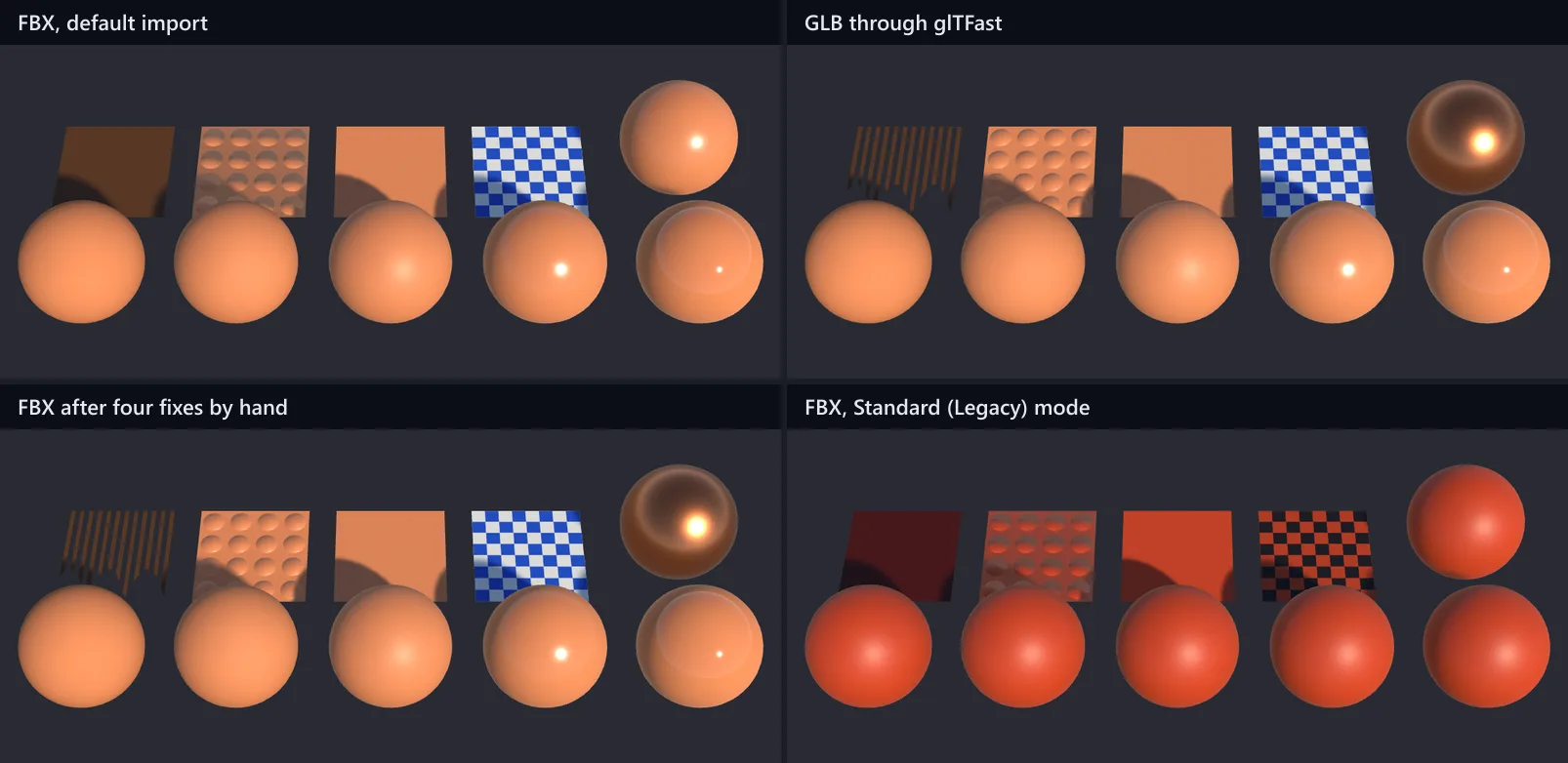
| Material in Blender | FBX, default import | GLB through glTFast |
|---|---|---|
| Roughness 0 to 1 | Smoothness 1 to 0, exact | Roughness 0 to 1, exact |
| Metallic 1 | Metallic 0 | Metallic 1 |
| Roughness texture | Not assigned | Assigned |
| Normal map | Assigned, but imported as an ordinary texture | Assigned |
| Alpha cut out (hair card) | Opaque | Transparent |
| Base colour and colour texture | Correct | Correct |
What the FBX exporter writes
The FBX format has two material types, Lambert and Phong, both older than physically based rendering, and neither has a field for roughness or metallic. Blender’s exporter does not leave them out. It converts them into Phong fields (in export_fbx_bin.py, part of Blender’s FBX add-on), and we read the exported file back to see what was written:
| Principled BSDF input | Written to the FBX as | What Unity’s URP does with it |
|---|---|---|
| Roughness | Shininess and ShininessExponent, both ((1 - roughness) x 10) squared: 100, 56.25, 25, 6.25, 0 | Smoothness = square root of Shininess / 100: 1, 0.75, 0.5, 0.25, 0. Exact |
| Metallic | ReflectionFactor = metallic | Ignored, Metallic set to 0 |
| Roughness texture | Texture in the ShininessExponent slot | Ignored |
| Normal map | Texture in the NormalMap slot, BumpFactor 1 | Assigned to Normal Map, but the image keeps Texture Type Default |
| Alpha from a texture | Texture in the TransparencyFactor slot, Opacity 1 | Ignored, surface stays Opaque |
| Base colour | DiffuseColor | Converted correctly to Unity’s colour space |
So the common story that roughness turns into a plastic shine does not hold for URP: the importer undoes Blender’s formula exactly. What actually goes missing is metallic, which Blender writes and URP never reads, and anything that lives in a texture other than colour or normal. The hair card is the clearest case: Blender puts the alpha texture where Unity does not look for one, and declares the material fully opaque, so the strands arrive as a solid block.
The exporter’s choice of fields is deliberate. A comment in its source says the transparency formula was written to match how Unity reads alpha. It is the URP importer’s mapping that leaves metallic and the extra maps behind.
Pink materials
A pink, or magenta, material means its shader cannot run in the current render pipeline. FBX import was not the cause in our test. Unity’s FBX importer has three Material Creation Modes, and we imported the same file with each:
- Import via MaterialDescription, the default: URP Lit materials, with the results in the table above.
- Standard (Legacy): also URP Lit materials, not pink. But the colours are written without the conversion to Unity’s colour space, so they came out darker and redder, and every material got smoothness 0.5, whatever its roughness.
- None: one grey default material on everything.
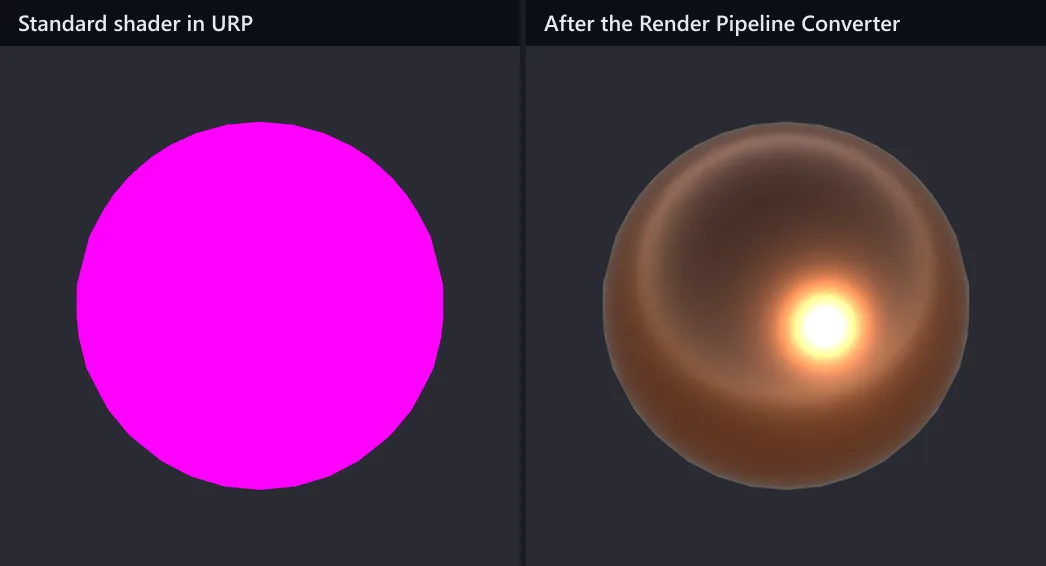
Pink came from materials built for Unity’s Built-in pipeline, on its Standard shader: what older asset packs ship, and what a project switched from Built-in to URP still contains. We made one, with metallic 1 and smoothness 0.7, and it rendered pink. Unity’s fix, in its URP manual, is Window > Rendering > Render Pipeline Converter, with Built-in as the source and URP as the target. Its Material Shader Converter turned ours into a URP Lit material with the colour, metallic 1 and smoothness 0.7 all intact.
Fixing an FBX import by hand
If you need FBX, for a rigged character, say, four changes in Unity brought our test scene back to what GLB delivered, all but the roughness map:
- Extract the materials. Select the model, open the Materials tab in the Inspector and press Extract Materials, so they become files you can edit.
- Mark the normal map as a normal map. Select the normal map image and set Texture Type to Normal map.
- Switch on Alpha Clipping on any material that needs cut outs, such as hair or leaves. Our card came out right at the default threshold of 0.5.
- Set Metallic again on every metal material.
The one thing we could not fix this way was the roughness texture. URP Lit reads smoothness from the alpha channel of its metallic map, the inverse of a roughness map, in a different place. Using it means rebuilding that texture outside Unity.
Does GLB avoid all of this?
For the test scene, yes. Through glTFast, every material kept its roughness, metallic, roughness map, normal map and colour, on glTFast’s own shader rather than URP Lit, and the hair card came in transparent, because Blender exported it with alpha mode BLEND. Nothing had to be fixed by hand.
Then we tried a model from an AI generator: the TRELLIS.2 figurine from our scale test, the GLB exactly as the generator delivered it, with a colour texture and a metallic and roughness texture.
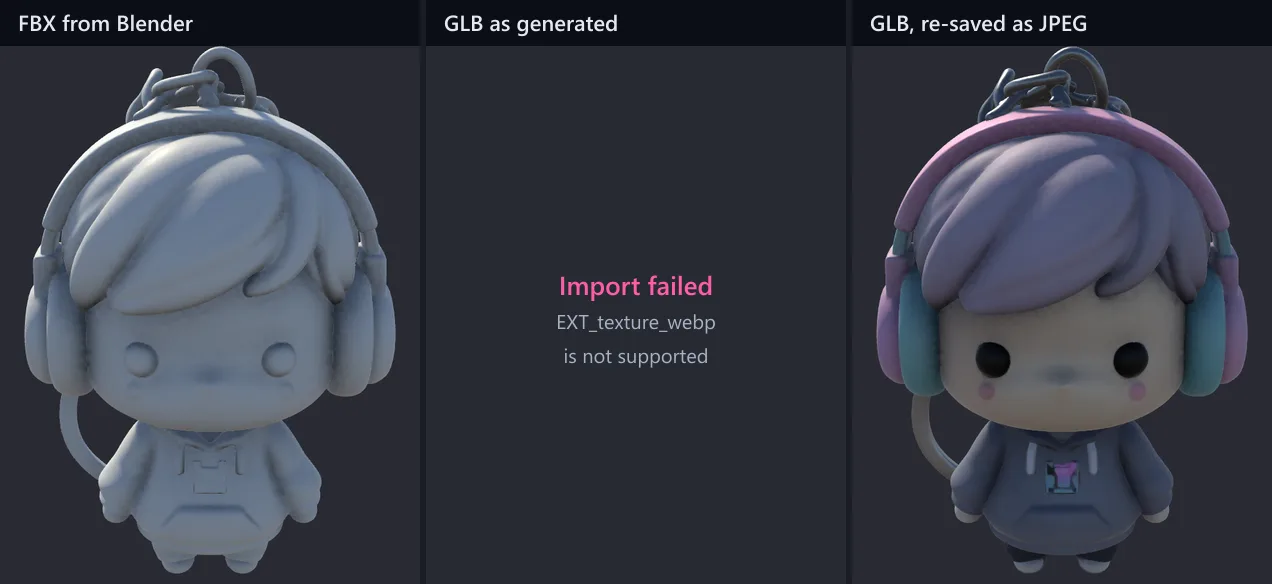
- The GLB as generated did not import. Its textures are WebP images, and the file marks the WebP extension as required. glTFast 6.20 does not support it, and the import failed with “glTF extension EXT_texture_webp is not supported”.
- Re-exporting it from Blender with default settings did not help. Blender’s Images option defaults to Automatic, which keeps WebP as WebP.
- Setting Images to JPEG Format fixed it. The option is under Data > Material in Blender’s glTF export dialog. The re-saved GLB imported with both textures and the metal parts intact.
- The FBX route lost the textures entirely. Imported into Blender, the generator’s images are packed inside the file, and the default FBX export pointed at a path that did not exist. Setting Path Mode to Copy and pressing the Embed Textures button embedded the colour texture, still in its original WebP format, and Unity again assigned no texture. The metallic and roughness texture was not written to the FBX in either case.
If you work with generated models, check the texture format before anything else; what a GLB file holds explains where its images live. More on what generated files arrive with is in our AI generated models guide.
Which one should you use?
| Your model | Use | Then |
|---|---|---|
| Static, with PBR textures | GLB with glTFast | Check the textures are not WebP |
| Rigged or animated | FBX | The four fixes above, and rebuild any roughness map |
| AI generated GLB | GLB, re-saved from Blender as JPEG if it uses WebP | Nothing else in our test |
| Built-in pipeline assets in a URP project | Render Pipeline Converter | Check metals and smoothness afterwards |
Why FBX is the usual answer for characters, and what OBJ can and cannot carry instead, is in FBX vs OBJ. If textures go missing when the model file travels without them, our texture survival benchmark measures which formats keep them inside. We sent the same test scene into Godot as well, by .blend, GLB and FBX, in Blender to Godot.
Method
Every step was scripted and run on 2026-10-13: the test scene and both exports in Blender 5.2.2; the imports, material readout and renders in Unity 6000.6.5f1 in batch mode, with URP 17.6.0 and glTFast 6.20.0 in a project made from the editor’s bundled URP template, in linear colour space. The FBX was imported once per Material Creation Mode, each copy in its own folder. The hand fixes were applied by script to a copy. The renders use one directional light and a reflection probe of Unity’s default sky. We did not test the .blend route, the HDRP or Built-in pipelines, other glTF importers, FBX export settings beyond the defaults (apart from Path Mode Copy with Embed Textures on the generated model), or anything to do with rigs and animation. The full list, every material property Unity recorded and the FBX field values are in the raw data linked above. This piece sits in our format conversion guide.
Frequently asked questions
How do I export from Blender to Unity?
Three ways. Export FBX from Blender (File > Export > FBX) and drop it into Unity's Assets folder; export GLB (File > Export > glTF 2.0) and install Unity's glTFast package to read it; or put the .blend file in the project, which only works if Blender is installed on the same machine, because Unity converts it to FBX through Blender. In our test with Unity 6 and URP, the GLB route kept every material setting, and FBX lost metallic, transparency and roughness maps.
Why are my Blender materials pink in Unity?
Pink means the material's shader does not run in your render pipeline, typically the Built-in pipeline's Standard shader in a URP project. It did not come from importing an FBX in our test: all three of Unity's FBX material modes produced URP Lit materials. It comes from materials made for the Built-in pipeline. Window > Rendering > Render Pipeline Converter fixes them; on our test material it kept the colour, metallic and smoothness values.
Does Unity support GLB files?
Not out of the box. Install the glTFast package: Package Manager, the plus button, Install package by technical name, com.unity.cloud.gltfast. With glTFast 6.20 in Unity 6, our GLB arrived with roughness, metallic, roughness map, normal map and transparency intact. A GLB whose textures are WebP will not import, which is the case for some AI generated models; re-export it from Blender with Images set to JPEG Format.
Why does my Blender model look plastic or lose its metal in Unity?
Through FBX, the metallic value does not arrive. Blender writes it into an FBX field called ReflectionFactor, and Unity's URP importer does not read that field, so every material comes in with Metallic 0. Roughness values do arrive correctly. Roughness maps do not. Either set Metallic again on each material in Unity, or use GLB.
Should I use FBX or GLB for Unity?
For a static model with PBR textures, GLB with glTFast: in our test it kept every material setting that FBX lost. For a rigged or animated character, FBX is still the usual choice, and you should plan to fix materials by hand after import: extract them, mark the normal map as a normal map, switch on Alpha Clipping where needed and set Metallic again.
Do I need to export textures separately?
With FBX, usually yes. Blender's FBX export references image files by path by default, so copy the textures into the Unity project too, or set Path Mode to Copy and press the Embed Textures button next to it. A GLB carries its images inside the file. In our test, a model whose images were packed in Blender lost them through a default FBX export, because the FBX pointed at a file that did not exist.