How to Reduce STL File Size: Measured Results for Every Method, Including the Free Ones
Published 2026-09-01

Search for how to shrink an STL and nearly every answer goes straight to removing triangles. Decimation works, but it is the one method on the list that permanently damages the model, and it usually is not necessary. Before touching the geometry there are three ways to make the file dramatically smaller while leaving every vertex exactly where it was.
What the numbers actually are
Everything below was measured on one model, the Stanford Bunny from the Stanford 3D Scanning Repository, scaled to 50 mm tall so the deviation figures can be compared against a printer’s real resolution. It is a laser scan rather than clean CAD, which is representative of the files people actually struggle with. The script that produces this table needs one public model and one pip install to reproduce.
Full results, method and limitations: What actually shrinks an STL file, and what each method costs in accuracy.
The raw output is published as JSON, produced
by scripts/measure-stl-size.py.
| Method | Size | After gzip | Triangles | Lossy | Mean deviation | 99.9% deviation |
|---|---|---|---|---|---|---|
| STL, ASCII | 19,745 KB | 5,900 KB | 69,451 | no | - | - |
| STL, binary | 3,391 KB | 2,086 KB | 69,451 | no | - | - |
| GLB | 1,223 KB | 751 KB | 69,451 | no | - | - |
| Binary STL, 50% faces kept | 1,696 KB | 1,012 KB | 34,725 | yes | 0.003 mm | 0.021 mm |
| Binary STL, 25% faces kept | 848 KB | 483 KB | 17,363 | yes | 0.007 mm | 0.042 mm |
| Binary STL, 10% faces kept | 339 KB | 181 KB | 6,944 | yes | 0.016 mm | 0.100 mm |
| Binary STL, 5% faces kept | 170 KB | 86 KB | 3,473 | yes | 0.029 mm | 0.391 mm |
| Binary STL, 2% faces kept | 68 KB | 32 KB | 1,389 | yes | 0.066 mm | 0.950 mm |
| GLB + Draco | 47 KB | 47 KB | 69,451 | yes | 0.004 mm | 0.014 mm |
Deviation was measured by sampling 60,000 points on the processed surface and finding the distance to the nearest point on the original. The 99.9th percentile is reported rather than the maximum, because on a scan a single stray vertex makes the maximum meaningless.
The three lossless options, in the order to try them
Save as binary instead of ASCII
An STL stores a list of triangles and nothing else. The format has two encodings for that same list. ASCII writes each facet as several lines of readable text, so a single coordinate like 0.0341796875 costs thirteen characters. Binary writes a short header, a four byte triangle count, then exactly 50 bytes per triangle, forever.
The geometry is identical. Not similar, not approximated: the same vertices in the same positions. On the test model that is 19,745 KB against 3,391 KB, a factor of 5.8, for a change that takes one dropdown in the export dialog.
The reason this matters is that a lot of exporters default to ASCII, and nothing in the interface tells you that you just saved a text file. If you have an STL that seems inexplicably large, open it in a text editor. If you can read words like facet normal and vertex, you have found several hundred percent of your file size sitting in plain sight.
Re-export from the source, not from the STL
If you still have the CAD file or the sculpt, going back to it beats anything you can do to the STL afterwards. An exporter tessellates smooth mathematical surfaces into triangles using a tolerance you control, usually called chord height, deviation or angular tolerance. Loosening that tolerance produces fewer triangles that are still placed intelligently, concentrated where curvature actually needs them.
Decimating an existing STL cannot do this, because by then the information about where curvature was has already been thrown away. It can only look at triangles and decide which to collapse.
This is the difference between a lower resolution export and a damaged one, and it is why this step sits above decimation in the order.
Zip it, but only for the journey
Gzip took the ASCII test file from 19,745 KB to 5,900 KB, a 3.3 times reduction, because ASCII STL is extremely repetitive text. On the binary file the same compression only achieved 1.6 times, since binary is already dense.
Two things follow, and the second one surprises people:
- Compression helps most on exactly the files you should not have been producing in the first place.
- The zipped ASCII file, at 5,900 KB, is still larger than the plain uncompressed binary file at 3,391 KB. Zipping is not an alternative to choosing the right encoding; it is something you do afterwards, and only for transfer, since the recipient has to unzip it before any slicer can open it.
When you do have to remove triangles
If the file is still too heavy after all of that, decimation is the remaining option, and now the question becomes how far you can go.
The usual advice is a percentage. That is the wrong unit, because a percentage tells you nothing about whether the print will change. What matters is how far the simplified surface has moved away from the original, in millimetres, compared against what your printer can physically resolve. A 0.4 mm nozzle lays down roughly 0.45 mm of plastic; surface error well below that will not survive into the print regardless.
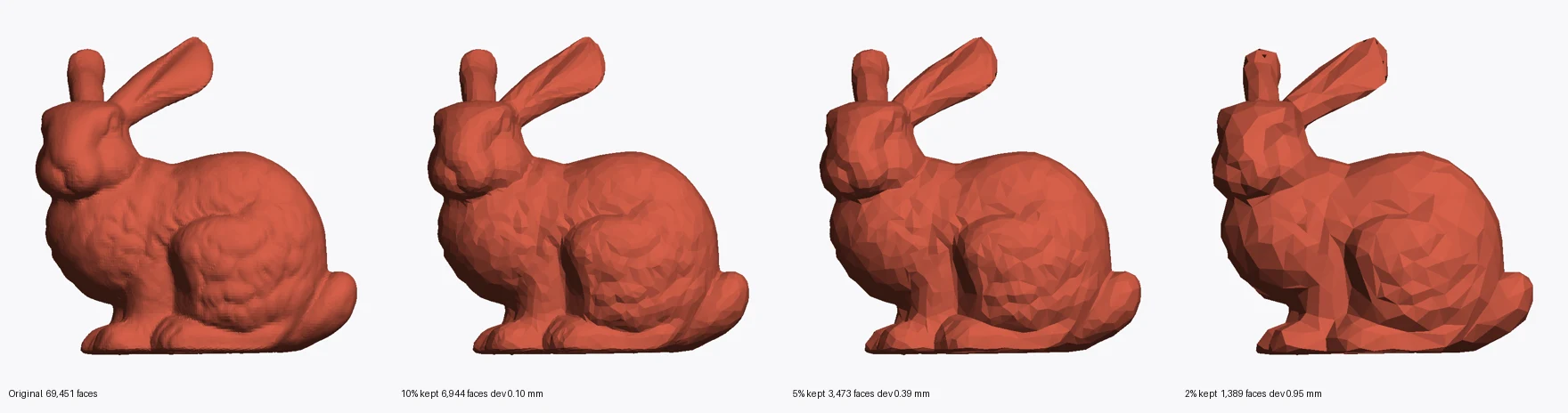
These are flat shaded on purpose. Every triangle gets one tone, so the facets are the picture rather than something smooth shading hides. Read them against the deviation column:
- 10 percent of faces, 0.100 mm deviation. Faceting is visible under flat shading, but at 0.100 mm it sits below what a 0.4 mm nozzle resolves. This printed would look the same.
- 5 percent, 0.391 mm. Now the error is on the same scale as the extrusion width. The curved surfaces have visibly become polygons.
- 2 percent, 0.950 mm. Nearly a millimetre of error on a 50 mm object. This is no longer the same shape.
So for this model the honest boundary is somewhere between 10 and 5 percent, and it lands there because of the printer, not because of the model. On a resin printer resolving finer detail, the same 10 percent file might be too coarse.
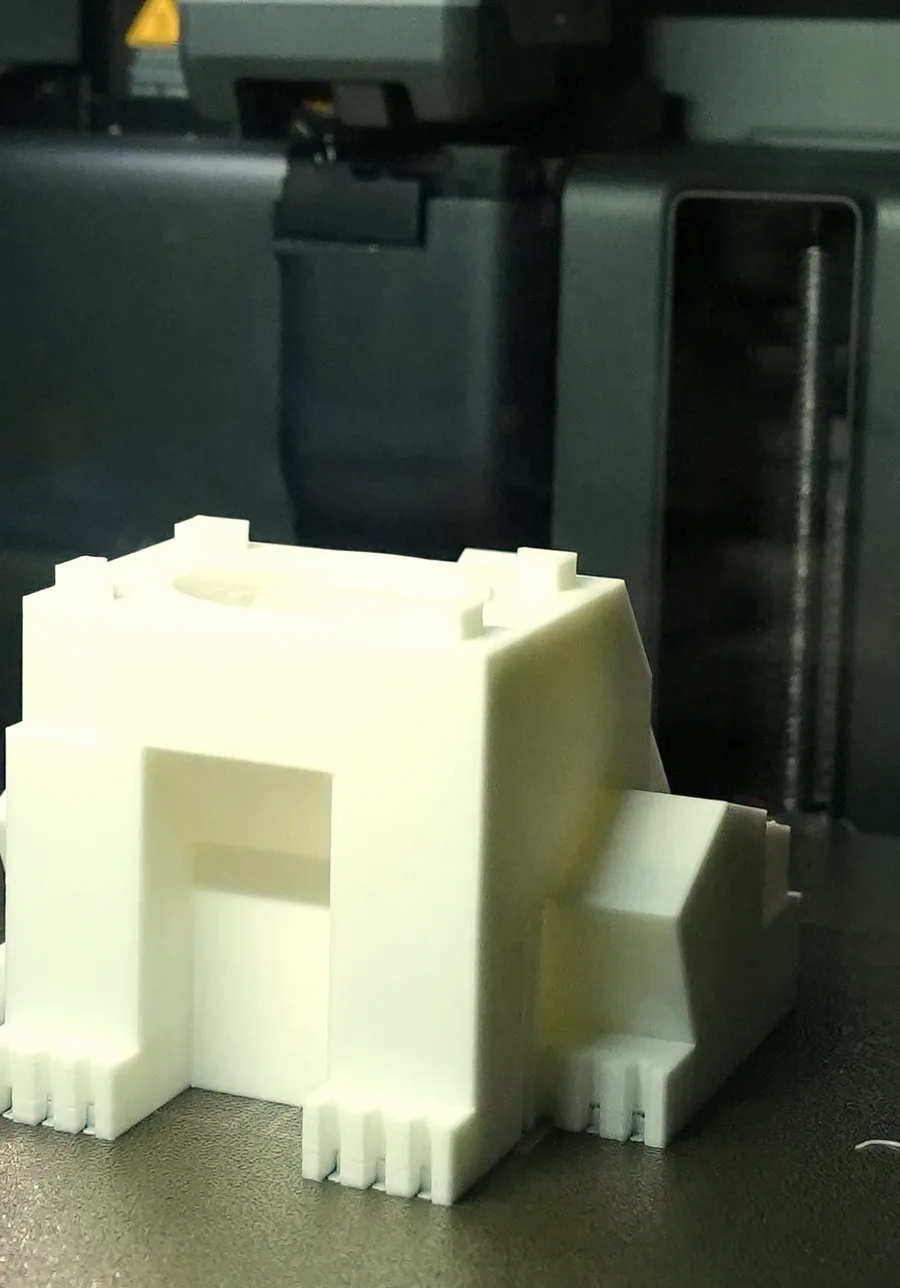
It also depends on what the model is, which a scanned bunny cannot show you. A shape like this one is flat panels meeting at hard corners, and it is already near its floor: there is no curvature left for triangles to approximate, so nearly every triangle in the file is doing structural work. Decimating it does not soften a curve slightly, it moves a corner. Percentage advice of any kind comes from dense scans, and it does not transfer to geometry that was never dense.
MeshLab does this well through Quadric Edge Collapse Decimation, with options to preserve boundaries and normals. Blender’s Decimate modifier covers the same ground, with the important caveat that adding the modifier changes nothing until you apply it.
If it is going on a web page, stop using STL
Everything above assumes the destination is a slicer. If the model is going into a browser, the format itself is the problem.
The same 69,451 triangles came to 1,223 KB as GLB, against 3,391 KB as binary STL. That is 2.8 times smaller than the best STL can do, with the geometry untouched. Add Draco compression and it becomes 47 KB.
That last number deserves attention next to the decimation ladder. Compare the two rows that produce a file of roughly the same size:
| Size | Triangles kept | 99.9% deviation | |
|---|---|---|---|
| Binary STL, decimated to 2% | 68 KB | 1,389 | 0.950 mm |
| GLB + Draco | 47 KB | 69,451 | 0.014 mm |
Draco produces a smaller file while keeping all 69,451 triangles, with 68 times less surface error. Draco is not lossless in the strict sense, since it quantises coordinates, but at 0.014 mm on a 50 mm object that distinction is academic for any use that is not metrology.
Two practical notes. Draco output does not compress further, since gzip took 46.9 KB to 46.6 KB and it is already compressed. And the viewer has to support the extension, which every mainstream web viewer does, including our own GLB viewer and Google’s model-viewer component.
STL also has no concept of colour, material, units or scene structure. A web viewer receiving one has to invent all of it. glTF was designed for this job the way JPEG was designed for photographs.
The new reason files are enormous
Guides on this topic assume your large file came from CAD with the tolerance set too fine, or from a 3D scanner. That was true for a long time. It is now only part of the picture.
Models coming out of image-to-3D and text-to-3D generators arrive dense by default, frequently in the hundreds of thousands of triangles, because the reconstruction produces a surface from a volume rather than from designed geometry. Photogrammetry has the same character. The result is a triangle soup: no edge loops, no symmetry, no deliberate density where curvature needs it, and often a mesh that is not watertight.
That changes the advice in two ways.
First, decimation behaves differently on these meshes than on CAD exports. A CAD export has flat regions carrying far more triangles than they need, which a decimator can collapse almost for free. A generated mesh has its density spread evenly by the algorithm, so there is less waste to reclaim, and reductions bite into real surface detail sooner.
Second, the file being large is often the least of its problems. If the mesh has holes, self-intersections or flipped normals, shrinking it just gives you a smaller broken file. Repair comes first, and we have covered what actually breaks in a broken STL and why sealing every hole does not clear the error separately.
The short version
Work down this list and stop when the file is small enough:
- Save as binary STL. 5.8 times smaller, geometry untouched, one dropdown.
- Re-export from the source with a looser tolerance, if you still have the source. Better triangles than any decimator can produce after the fact.
- Zip it for transfer. Helpful for sending, irrelevant for slicing, and no substitute for step 1.
- Decimate, judged in millimetres. Keep deviation below what your printer resolves, roughly 0.45 mm of extrusion width for a 0.4 mm nozzle, and keep the original.
- If it is for the web, use glTF with Draco instead, which beats every STL option on size while keeping all the geometry.
The methods in steps 1 to 3 cost nothing at all. Most files never need step 4.
Frequently asked questions
What is the fastest way to reduce an STL file size without losing quality?
Re-save it as binary STL. Most exporters offer ASCII and binary, and many default to ASCII, which stores every coordinate as human-readable text. On our test model the same 69,451 triangles came to 19,745 KB as ASCII and 3,391 KB as binary: 5.8 times smaller with the geometry byte-for-byte identical. Nothing is approximated, no triangles are removed, and any slicer made in the last two decades reads binary STL.
Does reducing STL file size affect print quality?
It depends entirely on which method you use, and the two kinds are not comparable. Changing the encoding (ASCII to binary), zipping for transfer, or converting to glTF changes the file without touching the geometry, so the print is identical. Decimation removes triangles and permanently changes the surface. On our test model, keeping 10 percent of faces moved the surface by 0.100 mm at the 99.9th percentile, which a 0.4 mm nozzle cannot resolve; keeping 5 percent moved it 0.391 mm, which it can.
How much can I decimate an STL before it looks faceted?
Judge it by deviation in millimetres, not by percentage of faces. The useful threshold is your printer's real resolution: an 0.4 mm nozzle lays down roughly 0.45 mm of plastic, so surface error well under that will not survive into the print anyway. On our 50 mm test model, 10 percent of the original faces stayed within 0.100 mm and looked clean, while 5 percent reached 0.391 mm and showed visible facets on curved surfaces.
Is zipping an STL file worth it?
For sending or archiving, yes, especially for ASCII files: gzip took our ASCII test file from 19,745 KB to 5,900 KB. But it is not a substitute for using the right format. That compressed ASCII file is still larger than the same model saved as uncompressed binary STL at 3,391 KB, and the recipient has to unzip it before any slicer can read it.
What is the difference between ASCII STL and binary STL?
They describe the same triangles in different ways. ASCII writes each facet as several lines of readable text, so you can open it in a text editor. Binary writes a short header, a triangle count, then a fixed 50 bytes per triangle. Because a coordinate written as text costs far more than the same number in binary, ASCII files run roughly five to six times larger for identical geometry. Binary is the sensible default unless you specifically need to read or diff the file as text.
Should I use STL or glTF for showing a 3D model on a website?
glTF, and it is not close. The same model that took 19,745 KB as ASCII STL and 3,391 KB as binary came to 1,223 KB as GLB, and 47 KB once Draco compression was applied, with all 69,451 triangles still present and surface deviation of 0.014 mm. STL also carries no colour, material or scene information, so a web viewer has to invent all of it.