How to Split an STL Into Parts That Fit Your Printer
Published 2026-10-14

Every tool that cuts a model into pieces promises the same thing: pieces that fit your printer. None of them says whether each piece comes back as a solid, with its cut face filled in, so that the slicer knows what is inside. We cut four models with five methods and checked every piece the way a slicer would.
Will it fit at all?
A model needs cutting when one of its three dimensions is larger than the printer’s build volume. These are the volumes the manufacturers publish for some common printers:
| Printer | Build volume (mm) |
|---|---|
| Bambu Lab A1 mini | 180 x 180 x 180 |
| Bambu Lab A1, P1S, X1C | 256 x 256 x 256 |
| Prusa MK4 / MK4S | 250 x 210 x 220 |
| Prusa MINI+ | 180 x 180 x 180 |
| Creality Ender-3 V3 SE | 220 x 220 x 250 |
For each axis, divide the model’s size by the bed size less a margin, and round up. A 430 mm tall robot on a 256 mm printer with a 5 mm margin needs 430 / 251 = 1.7, so 2 pieces in height. Do it for all three axes and multiply. That is the plan our Cut to fit page makes when you pick a printer, and the grid every method below was given.
Two things are worth trying before you cut. A long, thin part can lie diagonally: the diagonal of a 256 mm square bed is 362 mm. And if the exact size does not matter, scaling down is free, while every cut costs a seam and a glue joint.
What a cut has to do
A cut is not just a slice. Where the plane passes through the model, it opens a hole the shape of the cross section, and the cutting tool has to cover that hole with a new face. Only then is each piece a closed surface again, which is what a slicer needs to tell inside from outside. That new face is called a cap, and the question for every method below is whether its caps close.
There is a catch that no method can get around. A cap can only close a cross section that is itself closed, which means the model must have been closed before the cut. If the surface had holes, the cross section has gaps, and the pieces come out with holes of their own.
Five ways to cut, measured
We cut four models into the pieces they need for a 256 x 256 x 256 mm bed:
- Robot: 310 x 152.5 x 430 mm, closed, hard edges. Four pieces.
- Terrain tile: 420 x 370 x 137 mm, closed, organic. Four pieces.
- Generated figurine: a TRELLIS.2 generation scaled to 300 mm tall. Two pieces. More on this model below.
- The same figurine, repaired with a voxel remesh. Two pieces.
The robot, the terrain and the figurine (at 80 mm) are sample files on our split tool page, so you can repeat the cuts. The five methods, each given exactly the same planes:
- PrusaSlicer 2.9.6, using the cut option of its command line version. See the caveat below.
- Blender Bisect: Mesh > Bisect in Edit Mode, with Fill ticked.
- Blender Boolean, Exact: a Boolean modifier set to Intersect against a box the size of each piece, with the default Exact solver.
- Blender Boolean, Manifold: the same, with the Solver switched to Manifold.
- Our Cut to fit page, driven in a browser exactly as a visitor would use it.
Each piece then went through PrusaSlicer’s model check and was sliced. This table counts the pieces PrusaSlicer reported as closed, with the total open edges in brackets:
| Method | Robot | Terrain | Generated | Generated, repaired |
|---|---|---|---|---|
| PrusaSlicer command line | 3 of 4 (83) | 2 of 4 (15) | 0 of 2 (86) | 2 of 2 |
| Blender Bisect | 4 of 4 | 4 of 4 | 0 of 2 (86) | 2 of 2 |
| Blender Boolean, Exact | 4 of 4 | 1 of 4 (193) | 0 of 2 (86) | 2 of 2 |
| Blender Boolean, Manifold | 4 of 4 | 4 of 4 | refused | 2 of 2 |
| Our Cut to fit page | 4 of 4 | 4 of 4 | 0 of 2 (6,721) | 2 of 2 |
The raw output is published as JSON, produced
by scripts/measure-split-stl.py.
On the closed models, every method kept 100% of the volume, and the pieces were the sizes the plan asked for. Most of the open edges did not stop PrusaSlicer either: it sliced each of those pieces to within 0.1% of the filament the same piece needed from a clean cut. Two results did stop it:
- Blender’s Exact solver broke two terrain pieces beyond what the slicer could fix. PrusaSlicer refused to slice both, with “There is an object with no extrusions in the first layer”. The same cut with the Manifold solver came out clean. If you cut with Booleans in Blender 4.5 or later, switch the solver.
- Blender’s Manifold solver will not cut a model that is not closed. On the generated figurine it left the model whole, so there was nothing that fit the printer. That is by design: Blender’s release notes say the solver, built on the open source Manifold library, only works when every edge has exactly two faces. It is the same library our tool cuts with.
Where to put the cut
The broken pieces in that table were not random. On the robot, every open edge PrusaSlicer reported sat in one piece, at the neck, the antenna and the ball on top of it. To find out why, we cut the robot twice more with every method: once along a plane chosen to hit a problem, and once 0.5 mm away from it.

Through a row of vertices. The robot is symmetric, so 33 of its vertices sit exactly on its centre line: at the neck, on the antenna, and in a ring around the ball. Those are the heights where the defects were. Any model built with a mirror has a row like that, and a cut down the middle lands right on it. Cutting exactly there:
- PrusaSlicer’s command line cut left one piece with 63 open edges and 34 loose slivers.
- Blender’s Exact Boolean left 28 non-manifold edges and 30 slivers, though PrusaSlicer did not count them as open edges.
- Bisect, the Manifold solver and the Manifold library our tool uses were clean.
0.5 mm to the side, all five were clean.
Along a flat face. One horizontal plane through the robot lies exactly along a flat part of it, with 100 of its vertices on the plane. Cutting there left one Blender Bisect piece with 100 open edges. The other four were clean, and 0.5 mm higher, all five were.
So the rule that came out of this: nudge the plane off anything it lines up with exactly. A centre line, the top of a box, a flat base: half a millimetre was enough every time. One caveat about our own tool: it cuts at equal divisions of the bounding box, so on a symmetric model its middle cut lands exactly on the centre line. It did on both the robot and the terrain, which has 91 vertices on one of those planes. Its Manifold engine came through clean there, but if you take its plan to another tool, shift the planes first.
The usual advice for where to cut, which we did not test here, still applies on top of this:
- Put the cut face down on the bed. It is flat, so the piece needs no supports there and prints its best surface where the glue goes.
- Follow a natural seam. A waistline, a collar, the edge of a panel: the joint is hiding in plain sight.
- Keep away from thin parts. An ankle or a finger cut in two leaves a joint with almost no area to glue.
Cutting a generated model
The generated figurine is the file that told us the most. Here are its two halves, as our tool cut it from the model as generated (pink), and from the same model after repair (green):
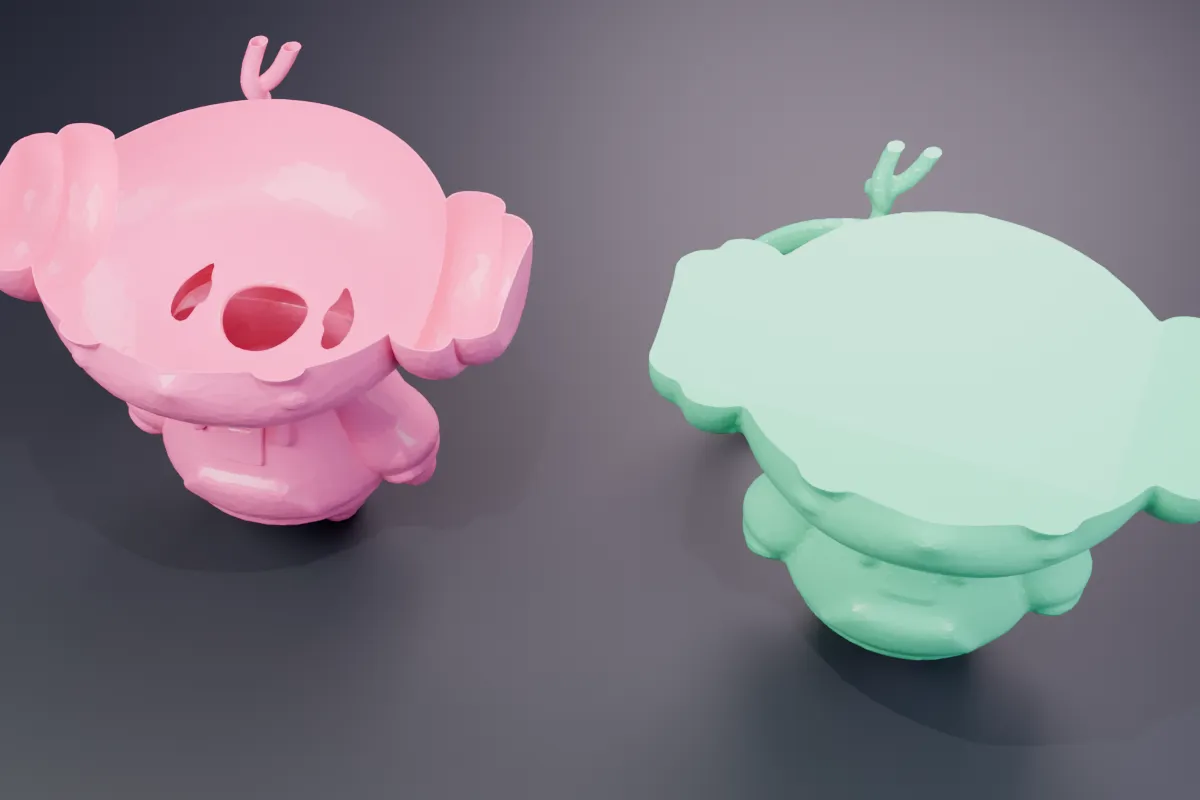
It looked solid, and it was not. Along both lines we probed, this TRELLIS.2 output is two surfaces 0.6 to 0.76 mm apart at the 300 mm size we cut it at: an outer skin and an inner one facing inward, with nothing between them. At the 80 mm size of our sample file, that wall is 0.16 to 0.2 mm, thinner than a typical nozzle line. The file also had 86 open edges and 265 non-manifold edges before anyone cut it.
What that does to a cut:
- Every method passed the 86 open edges on into the pieces. A cap cannot close a cross section with gaps in it.
- Our tool fell back to its second engine. Its main cutter, the Manifold library, will not take an open model, so the page switches to a general boolean, warns that the pieces may have small gaps, and asks you to let the slicer repair them. That boolean left 6,721 open edges, far more than the others. PrusaSlicer still sliced both pieces, to the same filament length as every other method.
- The slicer prints what is there: a skin. Both halves together came to about 40 metres of filament at PrusaSlicer’s default settings.
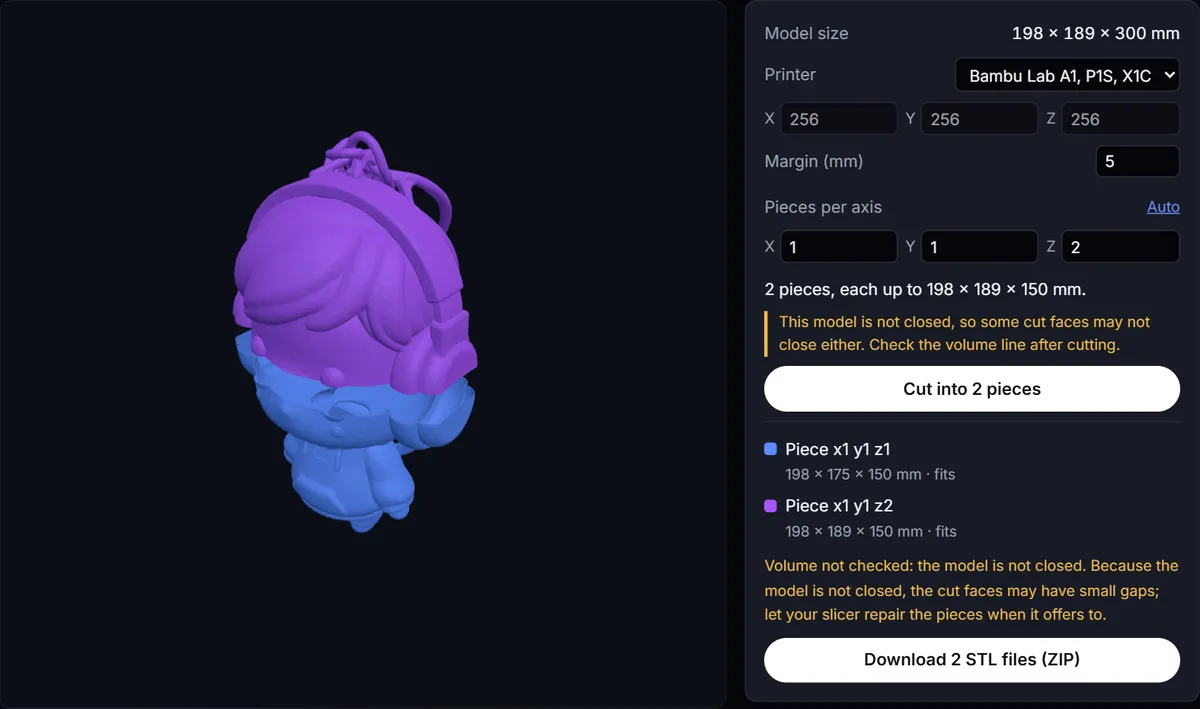
The fix is to repair before cutting, and for a hollow model that means filling it, not just closing it. We rebuilt the surface with Blender’s voxel remesh, which wraps a new closed surface around the shape, and the voxel size decided everything:
| Voxel size | Result |
|---|---|
| 0.8 mm | closed, but still a hollow skin, in 99 parts |
| 1.0 mm | 1,000 parts |
| 1.5 mm | 4,440 parts |
| 2.0 mm | one solid part, 2.98 litres |
| 3.0 mm | one solid part |
At the smaller sizes the remesh traced the skin and broke it apart. From 2 mm up, the two skins merged into one surface and the inside filled. At 2 mm, every one of the five methods cut it cleanly, with 100% of the volume kept, and the two halves sliced to 328 metres of filament, 8.1 times what the skin took.
On our generated model, the order that worked was: check it, repair it, then cut. Our pre-print checklist covers the check, how to repair an STL the repair, and when to rebuild instead the case where repair is not enough. It will often need scaling first too: the four generators in our scale test each put their model at an arbitrary size.
Putting the pieces back together
How the pieces line up when you glue them depends on what you cut with.
- PrusaSlicer’s Cut tool, according to its documentation, can add plug, dowel and snap connectors on the cut face, or cut a dovetail.
- Bambu Studio’s Cut tool, according to the Bambu Lab wiki, offers the same three connector types and a dovetail mode. The wiki itself notes that a dovetail cut may leave non-manifold edges, and offers a fix before slicing.
- Cura has no cut tool. In the source code of version 5.13, its tools cover moving, scaling, rotating, mirroring, per model settings, support blockers, painting, the camera and selection, and none of them cuts. The Mesh Tools plugin’s Split model into parts only separates bodies that are already separate.
- Our tool cuts the whole grid at once and gives you closed pieces, but adds no connectors. You align the pieces by hand when you glue them.
So there is a trade. The slicer cut tools give you joints that locate themselves, one plane at a time, and in our command line test PrusaSlicer’s cut was one of the two methods that broke on a row of vertices. Our tool gives you the whole grid in one step and closed pieces on closed models, without the joints. With either, check the pieces in the slicer before you print them.
Method
The five methods ran on 2026-10-13 on four files. Three are sample files on our STL splitter; the generated figurine was scaled uniformly from the sample’s 80 mm to 300 mm tall, and the fourth file is that figurine after a 2 mm voxel remesh in Blender. PrusaSlicer 2.9.6 was run from its command line, and for X and Y cuts the model was turned so that axis pointed up, then turned back. Blender 5.2.2 was scripted with the same operators you reach in its interface. Our page was driven in headless Chrome: upload, choose the printer, Cut, download the ZIP. Every piece was checked with PrusaSlicer’s model report and with trimesh, and sliced with PrusaSlicer’s default settings on a 256 mm bed. Nothing was printed. The raw results, including every piece and the list of what we did not measure, are in the data file linked above. This piece sits in our AI generated models guide.
Frequently asked questions
How do I split an STL into parts for free?
Three free routes worked in our test. Our Cut to fit page plans the pieces from your printer's bed size and cuts the whole grid in the browser. Blender's Bisect with Fill ticked, or a Boolean modifier with its Solver set to Manifold, cuts one plane at a time. The cut tools in PrusaSlicer and Bambu Studio also cut and can add connectors, but PrusaSlicer's command line cut left open edges in three of the ten pieces it cut from closed models.
Can Cura cut a model in half?
Not on its own. None of the tools in Cura 5.13's source code is a plane cut: they cover moving, scaling, rotating, mirroring, per model settings, support blockers, painting, the camera and selection. The Mesh Tools plugin's Split model into parts only separates bodies that are already separate in the file. Cut the model elsewhere and load the pieces into Cura.
How do I split an STL with connectors so the parts line up?
Use the Cut tool in PrusaSlicer or Bambu Studio. According to their documentation, both can add plug, dowel and snap connectors on the cut face, and both have a dovetail mode. Our browser tool does not add connectors.
Why are my pieces not watertight after cutting?
In our test, for two reasons. The model was not closed before the cut, and every method carried its holes into the pieces. Or the cut plane ran exactly through a row of the model's vertices, which is what a cut down the centre line of a symmetric model does: PrusaSlicer's command line cut left 63 open edges there, and moving the plane 0.5 mm cleared them.
Why does my AI generated model use so little filament?
It may be hollow. The TRELLIS.2 figurine we tested is two surfaces about 0.6 mm apart at 30 cm tall, a thin skin around nothing. Its two halves sliced to about 40 metres of filament. After a 2 mm voxel remesh in Blender filled it, the same halves took 328 metres.