3MF to STL: What 9 Converters Kept, Dropped and Invented
Published 2026-10-09

Converting a 3MF to STL is supposed to be the easy direction: drop the extras, keep the triangles. We made ten test files with known right answers and sent them through nine converters to see what actually comes out the other side.
Which kind of 3MF do you have?
There are two, and the difference decides everything that follows. A model 3MF holds geometry: one or more meshes, where they sit, and the unit they are measured in. A project 3MF is what a slicer writes when you save your work. It holds the same geometry plus plates, print settings, colours, and helper volumes that are not meant to print at all.
You can tell them apart without opening a slicer. A 3MF is a zip archive, so rename a copy to .zip and look inside. A file containing Metadata/model_settings.config was saved by Bambu Studio or OrcaSlicer; one containing Metadata/Slic3r_PE_model.config was saved by PrusaSlicer. Almost everything you download from MakerWorld or Printables is a project. What 3MF can store that STL cannot is covered in 3MF vs STL; this piece is about what happens when you force one into the other.
What we tested
Ten files, each built to test one thing, so that every output has a single right answer:
- Seven simple model files: a plain box, the same box declared in inches, one rotated, one scaled by 2, one mirrored, three separate objects, and one object built from two copies of the same mesh.
- Two files written by Bambu Studio 02.08.02.61 itself: a single part, and a project we built in its interface with a body, a modifier, a negative part and a second object on plate 2.
- One PrusaSlicer project with the same body, modifier and negative part, following the structure PrusaSlicer 2.9.6 writes.
The nine converters were PrusaSlicer, Bambu Studio and OrcaSlicer, Blender with the official 3MF Import/Export extension, the lib3mf and trimesh libraries, and three online converters: imagetostl.com, meshy.ai and convert3d.org. Within each file every part has a different size, apart from the deliberate twin copies in the components test, so each piece in an output can be identified from its size alone.
The raw output is published as JSON, produced
by scripts/measure-3mf-to-stl.py.
Do simple 3MF files convert correctly?
Mostly, yes. Rotation, scaling, several objects and repeated components came through correctly in every converter that kept millimetres. Two things went wrong often enough to matter:
| Converter | Box in inches | Mirrored box |
|---|---|---|
| PrusaSlicer | OK | OK |
| Bambu Studio, command line | OK | Inside out |
| OrcaSlicer, command line | OK | Inside out |
| Blender, defaults | 1000x too small | 1000x too small |
| Blender, Unit Scale 0.001 | OK | OK |
| lib3mf | 25.4x too small | Inside out |
| trimesh | 25.4x too small | OK |
| imagetostl.com | OK | Inside out |
| meshy.ai | 25.4x too small | Size OK, winding not visible |
| convert3d.org | 25.4x too small | Inside out |
Units are the one that bites. 3MF records its unit; STL records none, and every slicer reads STL numbers as millimetres. A converter has to multiply inch coordinates by 25.4 on the way out. Four of these did not, so a 40 mm box arrived as 1.57 mm. Bambu Studio and PrusaSlicer both write every 3MF in millimetres, so an inch file will rarely come from a slicer, but when one does turn up, nothing warns you. Which formats carry a unit at all is in our unit declarations benchmark, and what to do about a model at the wrong size is in this guide.
Mirroring is the other. A mirror flips which way the triangles wind, and a converter that applies the mirror without reversing the winding writes a model whose surfaces face inward. Five did. Slicers often correct reversed faces when they load a mesh, so it may print anyway, but a strict tool will report the model as broken.
Blender’s 1000x is its own story, covered below.
What goes wrong with a project 3MF?
This is where every converter failed somewhere. The project we built in Bambu Studio holds a 40 x 20 x 10 mm body on plate 1. Inside it are a modifier, a volume that only changes print settings such as infill in the region it covers, and a negative part, a volume that marks a hole to subtract. A second part sits on plate 2. The right STL for plate 1 is one shell: the body with the hole cut out.
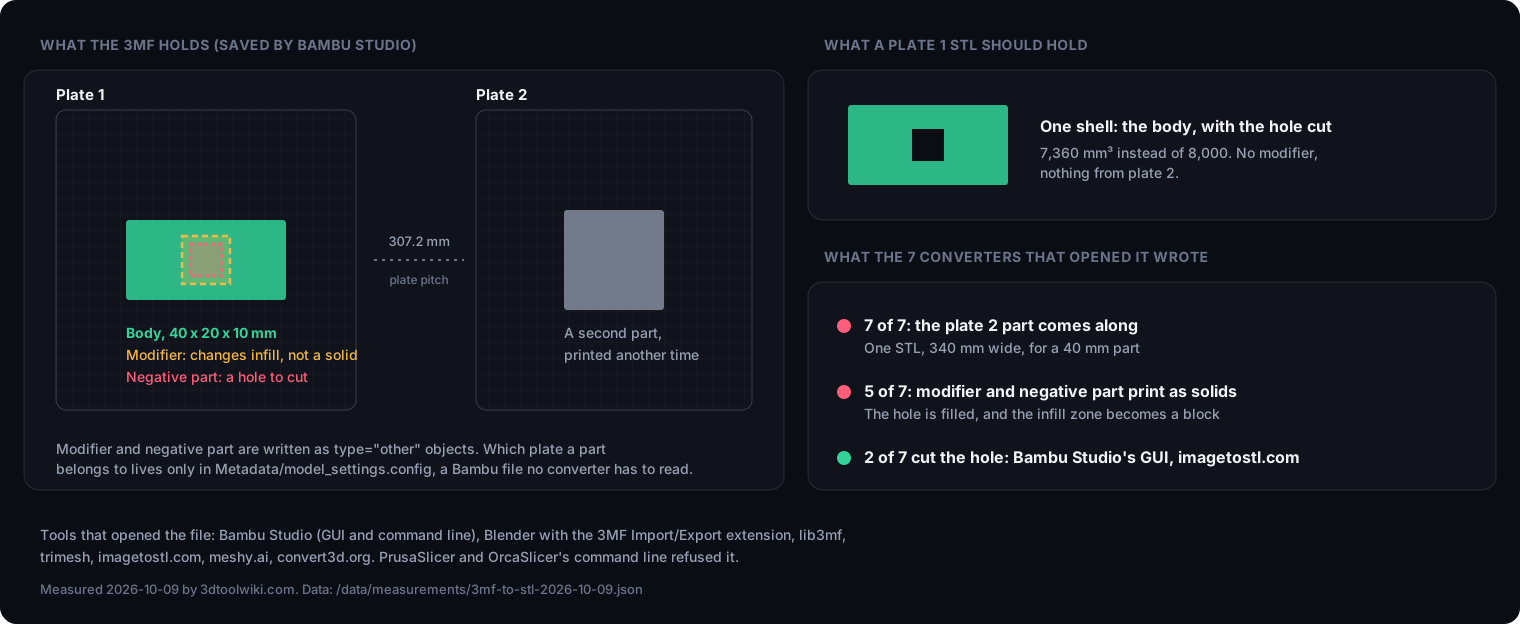
Seven of the nine converters opened it. None produced that single shell:
| Converter | Plate 2 part | Modifier | Negative part |
|---|---|---|---|
| Bambu Studio GUI, boolean Yes | Included | Left out | Hole cut |
| Bambu Studio GUI, boolean No | Included | Left out | Ignored, no hole |
| Bambu Studio, command line | Included | Left out | Ignored, no hole |
| imagetostl.com | Included | Left out | Hole cut |
| Blender, Unit Scale 0.001 | Included | Solid block | Solid block |
| lib3mf | Included | Solid block | Solid block |
| trimesh | Included | Solid block | Solid block |
| convert3d.org | Included | Solid block | Solid block |
| meshy.ai (its own readout) | Included | Solid block | Solid block |
| PrusaSlicer | Refused to open | ||
| OrcaSlicer, command line | Refused to open |
Three different failures are mixed in that table. Counting tools rather than settings, seven converters opened the file:
- Other plates come along. A 3MF has no notion of plates. Bambu Studio records which plate each object belongs to in its own
model_settings.config, and places plate 2 one bed width plus 20 percent to the right, 307.2 mm on a 256 mm bed. Every converter exported that part too. All of them put it in the same STL, so a 40 mm body arrived in a file 340 mm wide, except Bambu Studio’s one file per object export, which wrote it as a second file. - Modifiers become solid geometry. Bambu Studio writes a modifier as an object of type
other. A converter that does not read Bambu’s settings file sees just another mesh and keeps it. Five of the seven did this: trimesh, lib3mf, Blender, meshy.ai and convert3d.org. In the print, the region that was meant to get denser infill becomes a block fused into the body. - Negative parts are filled in or forgotten. Cutting the hole needs a mesh boolean. Only Bambu Studio’s GUI, when you say yes, and imagetostl.com did it. The rest either left the hole out entirely or wrote the negative part as a solid block of its own.
The PrusaSlicer project behaved the same way in the other tools: everything except Bambu Studio’s GUI wrote its modifier and negative part as solids. PrusaSlicer itself, on its own project file, left the modifier out correctly but did not cut the hole.
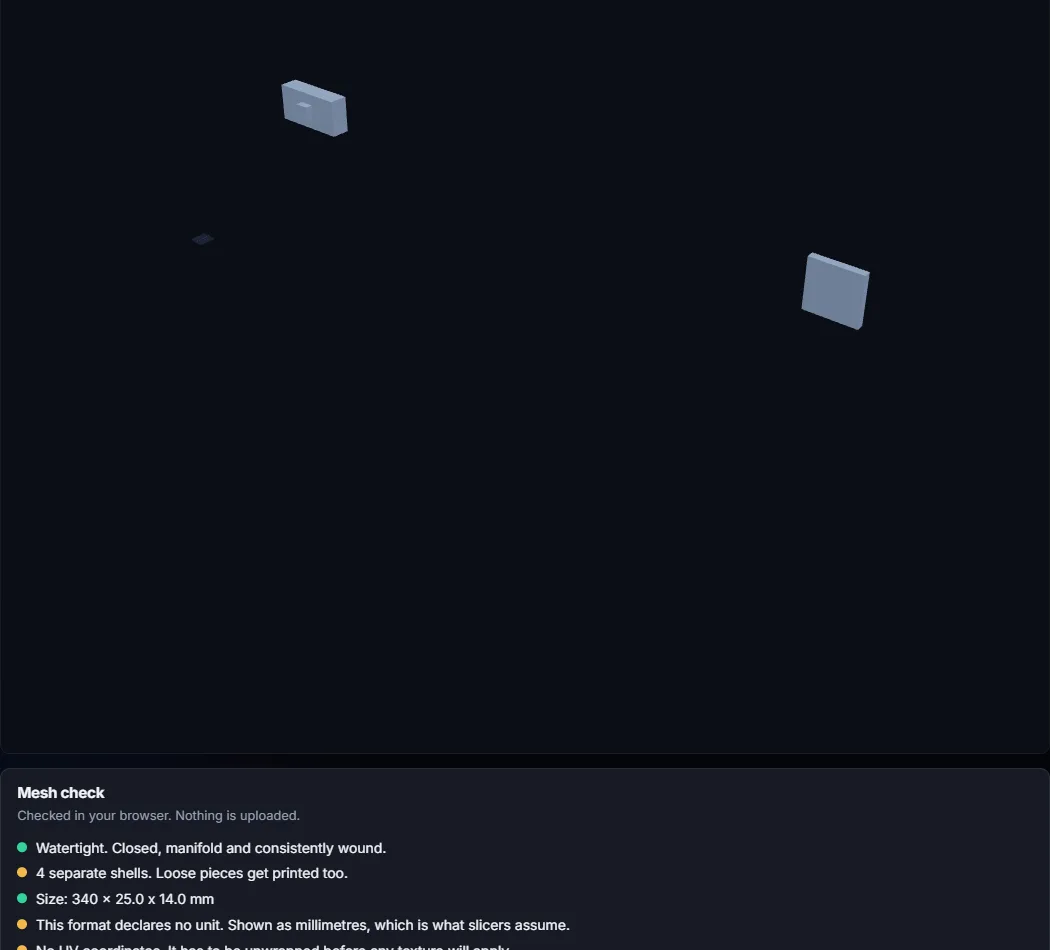
This is what the converted Bambu project looks like in that viewer. One file, four shells, 340 mm wide:
How do you convert 3MF to STL in Bambu Studio?
Open the 3MF in Bambu Studio, then go to File, Export and pick one of two items:
- Export all objects as one STL writes a single file.
- Export all objects as STLs writes one file per object, named after the object with
.stlappended, so a part imported frombody.stlcomes out asbody.stl.stl.
If any object has a negative part, Bambu Studio stops and asks: “Negative parts detected. Would you like to perform mesh boolean before exporting?” Answer Yes. With Yes, our body came out at 7,360 mm³, exactly its 8,000 mm³ minus the 640 mm³ the negative part overlaps. With No, the negative part was silently dropped and the body stayed solid. Modifiers were left out either way, which is correct.
What neither item does is export one plate. Both take every object on every plate. We did not find a per plate STL export in the File menu, so the dependable route is to delete or move the objects on the other plates first, then export, then close the project without saving.
What about PrusaSlicer and OrcaSlicer?
PrusaSlicer handled its own project correctly apart from the hole: the modifier was left out, and the negative part was ignored rather than subtracted, so the body stayed at the full 8,000 mm³. We measured this through its command line export. Its interface offers File, Export, Export Plate as STL, which by name exports a single plate; we have not yet confirmed whether that path cuts negative parts.
OrcaSlicer forked from Bambu Studio, and its command line gave the same results as Bambu Studio’s on every file it could open. Its command line refused our Bambu project. Its interface opened the file but warned: “The 3MF was created by BambuStudio (version 2.8.2.61), which is newer than the compatible version 2.6.0.51. Found unrecognized settings”. OrcaSlicer 2.4.2 is the current release, and MakerWorld files are saved by whatever Bambu Studio is current, so expect this warning on most downloads.
Why won’t a Bambu 3MF open in PrusaSlicer?
PrusaSlicer 2.9.6 refused our Bambu project with “Error (Invalid 3MF format) while parsing ‘3D/3dmodel.model’ at line 22”. Line 22 is the first component that points at the modifier.
The rule behind it is in the 3MF core specification: a build item may not reference an object of type other, directly or through components. Bambu Studio writes every modifier, negative part and support blocker as an other object and references it from the printable object, which is exactly that. PrusaSlicer enforces the rule; Bambu’s own reader does not need to, because it reads its settings file to know what each volume is.
So the common claim that PrusaSlicer cannot open Bambu files is too broad. The single part file Bambu Studio wrote opened in PrusaSlicer without complaint and converted correctly. The trigger is a modifier, a negative part or a support blocker anywhere in the project. A request to accept Bambu’s files anyway, PrusaSlicer issue 13646, has been open since November 2024.
Converting through Blender
Blender has no 3MF support built in. The official extension platform has 3MF Import/Export, and version 2.7.7 read every file in our set, including both project types. From the Bambu project it brought the modifier and negative part in as their own objects, named as they were in the slicer, so you can delete them before exporting. From the PrusaSlicer project it imported everything as a single object, helpers included, so they cannot simply be deleted.
The trap is the unit. Blender works in metres. The extension converts the 3MF’s millimetres correctly on import, so a 40 mm box becomes 0.04 m, and Blender’s STL export then writes 0.04 into a file every slicer reads as 0.04 mm. Every file we exported at default settings was 1000 times too small.
The extension’s own “Scene Unit: Millimeters” option does not fix this: it changes how lengths are displayed, not the numbers stored. What works is setting Scene Properties, Units, Unit Scale to 0.001 and Length to Millimeters before importing. With that, every simple file in our set came out at the right size.
Online 3MF to STL converters
The three online converters that rank for “3mf to stl” behaved differently enough that it is worth knowing which one you are using:
| imagetostl.com | meshy.ai | convert3d.org | |
|---|---|---|---|
| Box in inches | OK | 25.4x too small | 25.4x too small |
| Mirrored box | Inside out | Size OK | Inside out |
| Bambu project | Hole cut, plate 2 included | Everything as solid | Everything as solid |
| Where the file goes | Result served from its own download server | Says files stay in your browser | Not checked |
| Limits we hit | None | 3 conversions without an account | Batch conversion is paid |
imagetostl.com was the only online tool that understood negative parts: its options include a “Negative Parts” setting that defaults to Apply. It still wrote the plate 2 part into the file. meshy.ai capped us at three conversions without an account, so for most files we recorded what its page reported reading, triangle count and overall size, rather than an STL; that is enough to see extra parts but not to check winding.
”Invalid values found in the 3mf”
This message comes from Bambu Studio, and it is a warning, not a failure. When you open a 3MF as a project, Bambu Studio checks every print setting stored in it and lists the ones that fall outside what your printer profile allows, ending with “Please correct them in the param tabs”. The model still loads. It often appears when a file was saved for a different printer, and Bambu’s own issue tracker has a report of it on a file Bambu Studio had just saved. If you only want the geometry, it does not affect the STL you export.
If you only want to change something, keep the 3MF
Converting is a one way trip. Plates, colours, which part is a modifier, print settings and the unit declaration all disappear the moment the file becomes STL, and none of them can be recovered from it. If what you need is to resize the model, move a part, change a colour or switch printer, do it in the slicer and keep the file a 3MF. Convert only when the next program genuinely cannot read 3MF, and then check the STL in a viewer before trusting it. Our pre-print checklist lists what to look at, and the same kind of loss for GLB is measured field by field in GLB to STL conversion.
Method
All tests ran on 2026-10-08 and 2026-10-09 on Windows 11. Versions: PrusaSlicer 2.9.6, Bambu Studio 02.08.02.61, OrcaSlicer 2.4.2, Blender 5.2.2 with 3MF Import/Export 2.7.7, lib3mf 2.5.0, trimesh 5.1.0; the three websites as they were on 2026-10-09. The command line exports of Bambu Studio and OrcaSlicer were run with arranging and auto orientation switched off, because their defaults move and rotate objects.
All ten test files can be downloaded, including the Bambu project, so every result here can be repeated. Eight were generated by script. The two Bambu files were written by Bambu Studio itself, one from its command line and one built and saved in its interface; we first tried hand written copies of Bambu’s structure, and dropped them after finding that Bambu aware readers treat a file without Bambu’s other metadata files differently. Each output STL was split into separate shells and matched to the expected parts by size; negative parts were checked by volume, because a missing hole does not change a bounding box.
What we did not test: OrcaSlicer’s interface beyond opening the file; PrusaSlicer’s interface export; Bambu Studio’s interface on the simple files; and real project files from MakerWorld or Printables, which belong to their designers. Cura was not tested because its installer needs administrator rights on our test machine. The full results, both Bambu files and the list of limitations are on the benchmark page and in the raw data linked above. This piece sits in our format conversion guide.
Frequently asked questions
Can you convert 3MF to STL without losing anything?
Not everything. STL stores only triangles, so colour, materials, print settings, plates and the names of parts are dropped by any converter. The geometry itself can survive intact: on a plain single part 3MF, every converter we ran it through wrote the right shape and size except Blender at its default settings. The risk is in project files saved by a slicer: none of the nine converters we tested turned a two plate Bambu Studio project into a clean single plate STL.
How do I convert a 3MF to STL in Bambu Studio?
Open the 3MF, then use File, Export, Export all objects as one STL, or Export all objects as STLs for one file per object. If the project has negative parts, Bambu Studio asks whether to perform a mesh boolean first: answer Yes, or the holes are not cut. Both items export every object on every plate, so remove what you do not want from the other plates before exporting.
Why is my STL tiny after converting from 3MF?
Two common causes. If the 3MF was saved in inches, four of the nine converters we tested ignored the unit and wrote inch numbers into an STL that every slicer reads as millimetres, so the model came out 25.4 times too small. If you went through Blender at its default settings, the STL is written in metres and is 1000 times too small; set Unit Scale to 0.001 before importing.
Why does my converted STL have extra parts in it?
Because the 3MF was a slicer project. A project can hold parts on other plates, modifier volumes that only change print settings, and negative parts that mark holes. STL cannot label any of these, so a converter either drops them or writes them as solid geometry. In our test every converter that opened a two plate Bambu project exported the second plate's part as well.
Why won't a Bambu Studio 3MF open in PrusaSlicer?
PrusaSlicer 2.9.6 rejects a Bambu project when one of its objects includes a modifier or negative part, which Bambu writes as an object of type other. The 3MF core specification forbids build items from referencing such objects, and PrusaSlicer enforces that, reporting an invalid 3MF format error with a line number. A single part Bambu file without them opened fine in our test.
Is it safe to upload a 3MF to an online converter?
It depends on the converter. Some process the file in your browser and say it never leaves your machine; others upload it and return the result from their own server. A project 3MF can carry more than geometry, such as the designer's name and print profile, so check which kind you are using before uploading anything that is not yours to share.